

Connections Center
The Connections Center is the single hub for managing how payroll data flows into Audit1. Almost every integration — connectors, SFTP, API, webhooks, MCP agents, even email reporting — is configured here before it can be used.
Start here.
If a connector or integration "isn't working," the first thing to check is whether its connection was set up in the Connections Center.
Where to Find It #
| You are a... | Portal | Path |
|---|---|---|
| Insured (employer) | Employer portal | Settings → Payroll → Connections |
| Payroll provider | Payroll portal | Settings → Connections Center |
Global vs Per-Account Scope #
The same connection types behave differently depending on who configures them:
| Payroll Provider (global) | Insured (per-account) | |
|---|---|---|
| Covers | All of your client employers at once | Only your own company |
| File routing | Automatic — files are identified and routed to the correct employer by FEIN, policy number, and file content | Direct — everything you send belongs to you |
| Set up | Once | Once per employer |
| Best for | Payroll companies serving many insureds | Employers reporting their own payroll |
A payroll provider creates one connection and lets Audit1 handle the routing, identification, and processing automatically. An insured creates a connection scoped to itself.
Connections also carry an owner. During setup the wizard shows "Owned by [your company]" — and when an admin sets up a connection on someone's behalf, they choose whether the insured or the payroll provider owns (and manages) the credentials.
Connection Methods — Insured (Employer Portal) #
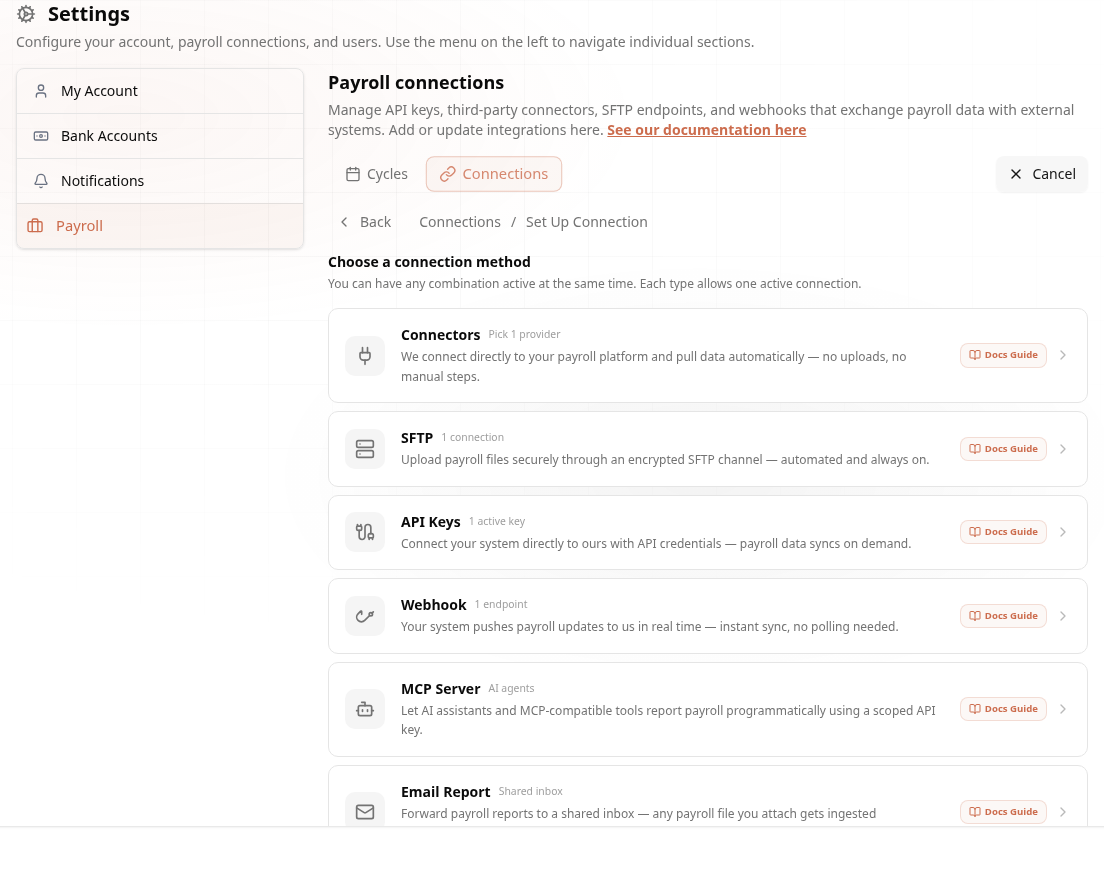
Open Settings → Payroll → Connections and click Create Connection. You can have any combination active at the same time; each type allows one active connection.
| Method | What it does |
|---|---|
| Connectors | We connect directly to your payroll platform (Paylocity, UKG, Accountants World, QuickBooks, Hartford) and pull data automatically — no uploads, no manual steps. Pick 1 provider. |
| SFTP | Upload payroll files securely through an encrypted SFTP channel — automated and always on. |
| API Keys | Connect your system directly to ours with API credentials — payroll data syncs on demand. |
| Webhook | Your system pushes payroll updates to us in real time — instant sync, no polling needed. |
| MCP Server | Let AI assistants and MCP-compatible tools report payroll programmatically using a scoped API key. |
| Email Report | Forward payroll reports to a shared inbox — any payroll file you attach gets ingested automatically. |
Payroll Software Connectors #
Choosing Connectors opens the connector grid:
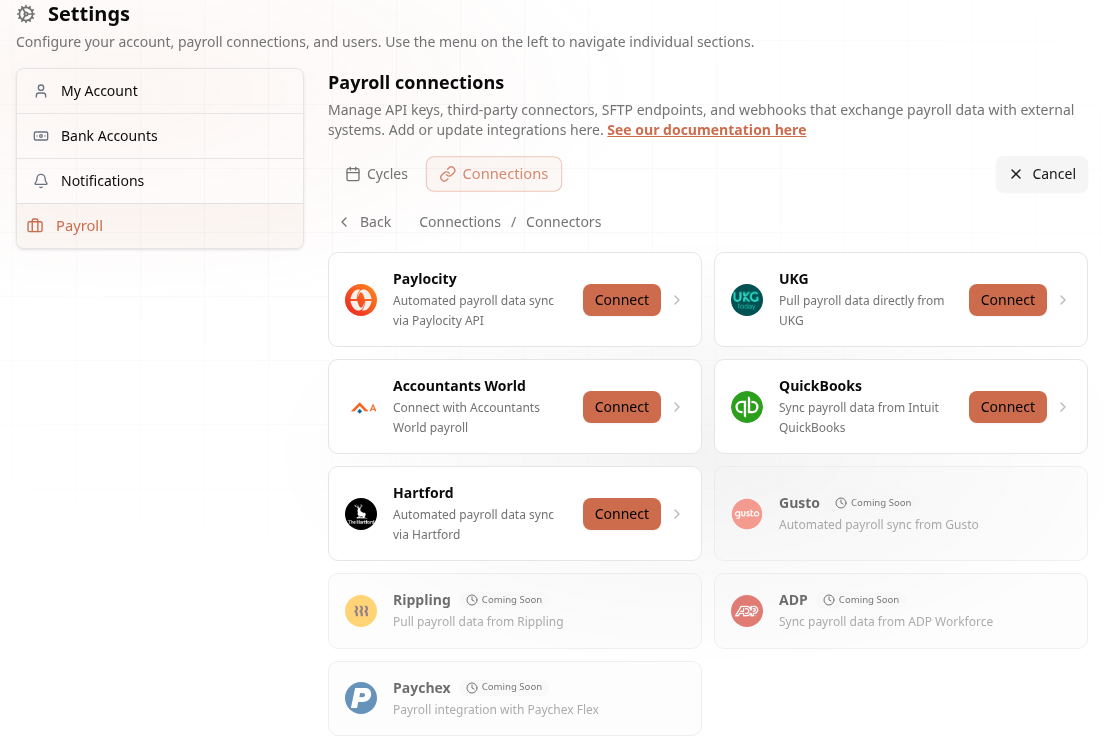
Live today: Paylocity, UKG, Accountants World, QuickBooks, Hartford. Coming soon: Gusto, Rippling, ADP, Paychex.
Each connector has its own short wizard. Two patterns:
- Credential connectors (Paylocity, UKG, Accountants World): the wizard asks "Do you already have API credentials?" — enter them to connect immediately, or click Request new credentials to start the request process (the connection is created in pending status and you're notified when it's ready).
- OAuth connectors (QuickBooks): you're redirected to the provider's login page, authorize Audit1, and come back connected — no credentials to copy.
See the per-connector pages for the full step-by-step: Paylocity, UKG, AccountantsWorld, QuickBooks Online, Email.
SFTP #
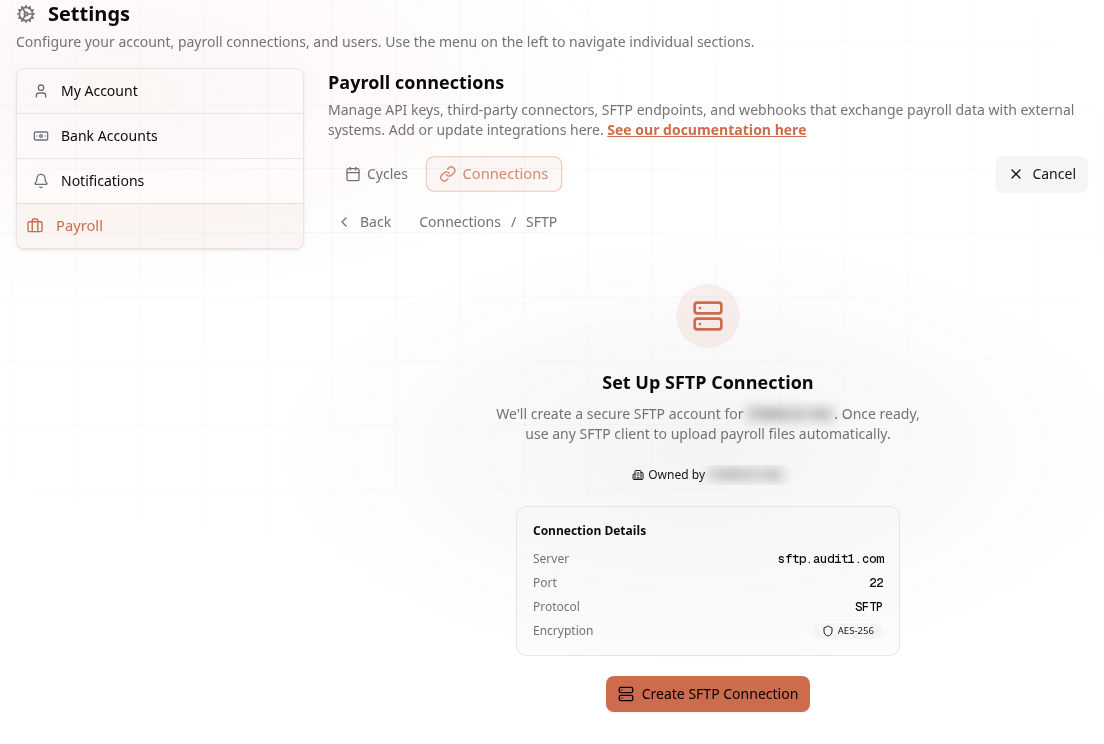
Audit1 creates a secure SFTP account for your company on sftp.audit1.com (port 22, AES-256), with a username and a password. Use any SFTP client to upload payroll files automatically. Leave the remote path as / — your account is locked to its own folder — and make sure every transfer names the file it is writing, because a transfer aimed at the folder is refused with operation unsupported and delivers nothing at all. Full spec: SFTP integration.
API Keys #
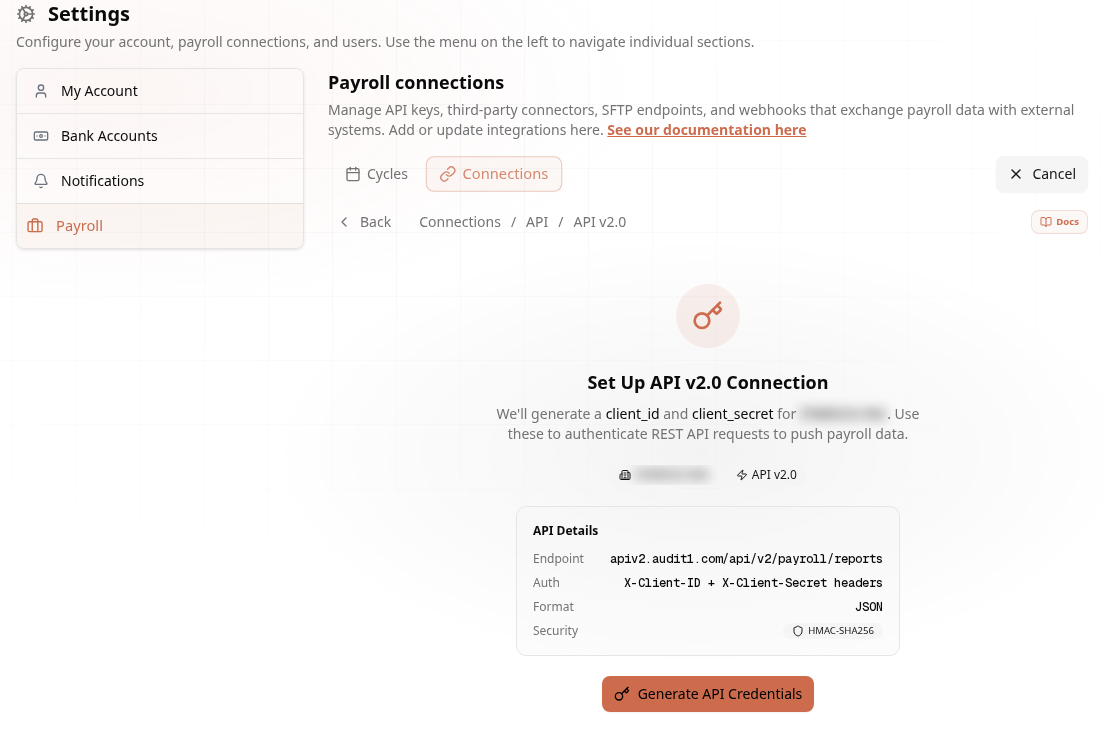
Choose your API style — API v2.0 (modern REST, recommended) or the Legacy API v1.0 (classic Audit1 portal). v2.0 generates a client_id and client_secret used to push payroll to apiv2.audit1.com/api/v2/payroll/reports (JSON, HMAC-SHA256).
Webhook #
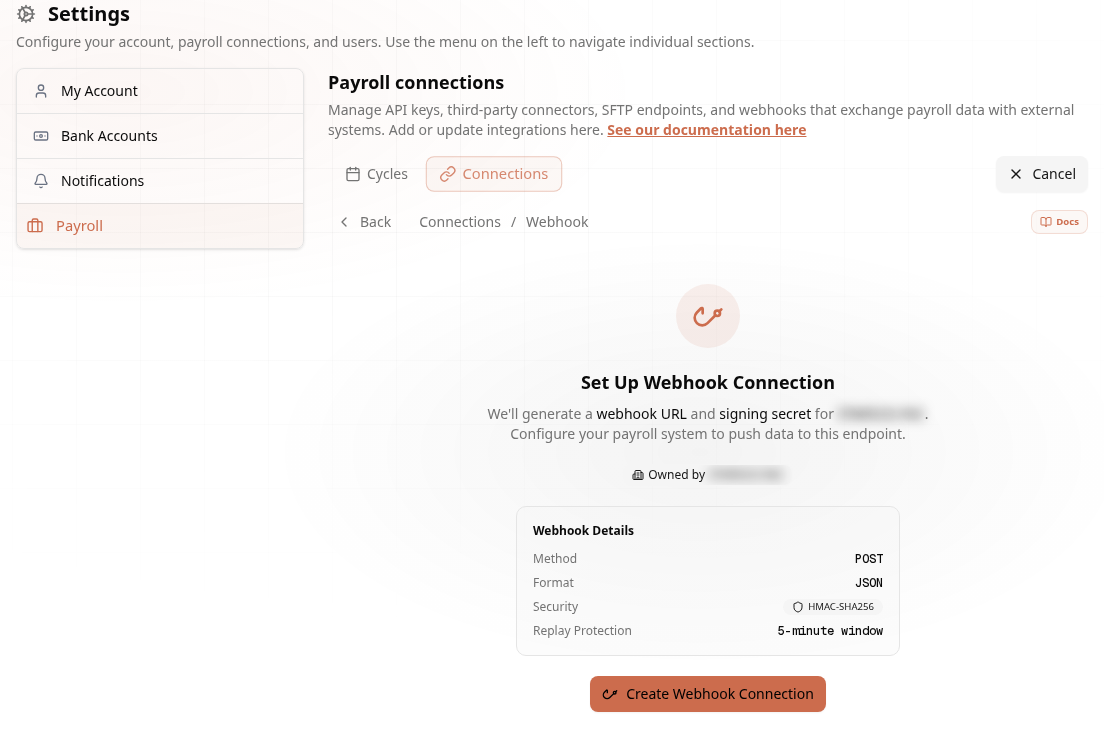
Audit1 generates a webhook URL and signing secret for your company. Configure your payroll system to POST JSON to that endpoint. Details: Webhooks.
MCP Server #
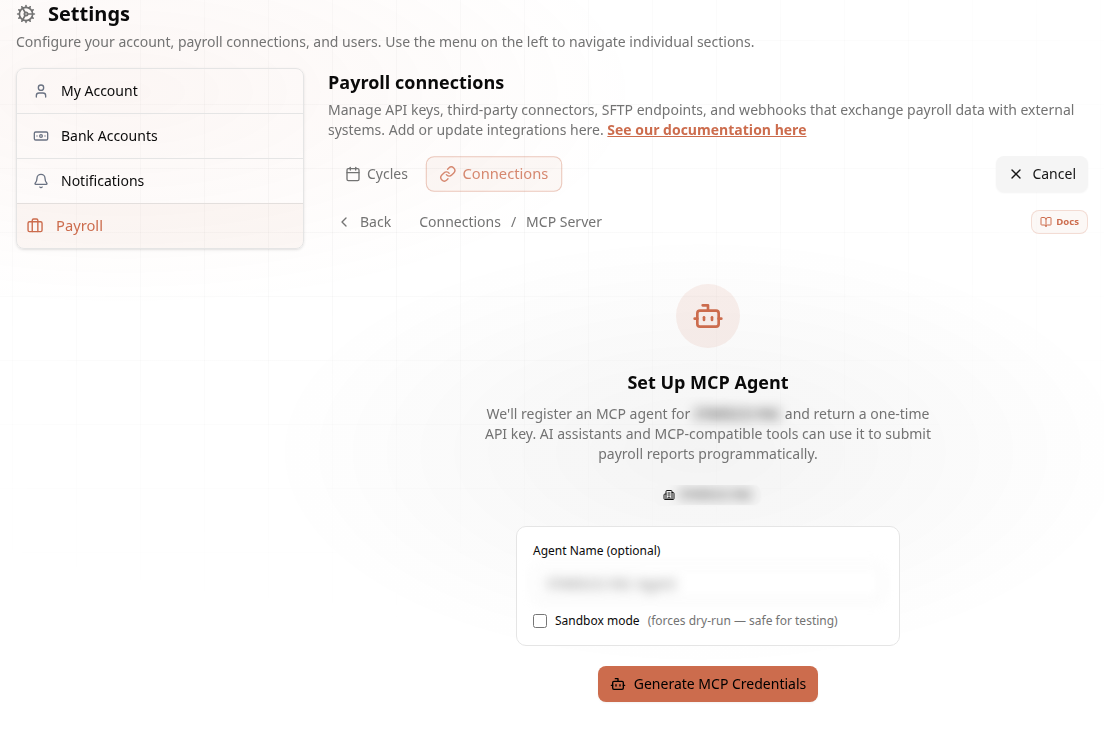
Registers an MCP agent for your company and returns a one-time API key. AI assistants and MCP-compatible tools use it to submit payroll reports programmatically. A Sandbox mode checkbox forces dry-run — safe for testing. Details: MCP overview.
Email Report #
Turn on email reporting and anything you send to payroll@audit1.com gets processed — as long as the attachment is a payroll report file. Senders are matched against your entity.
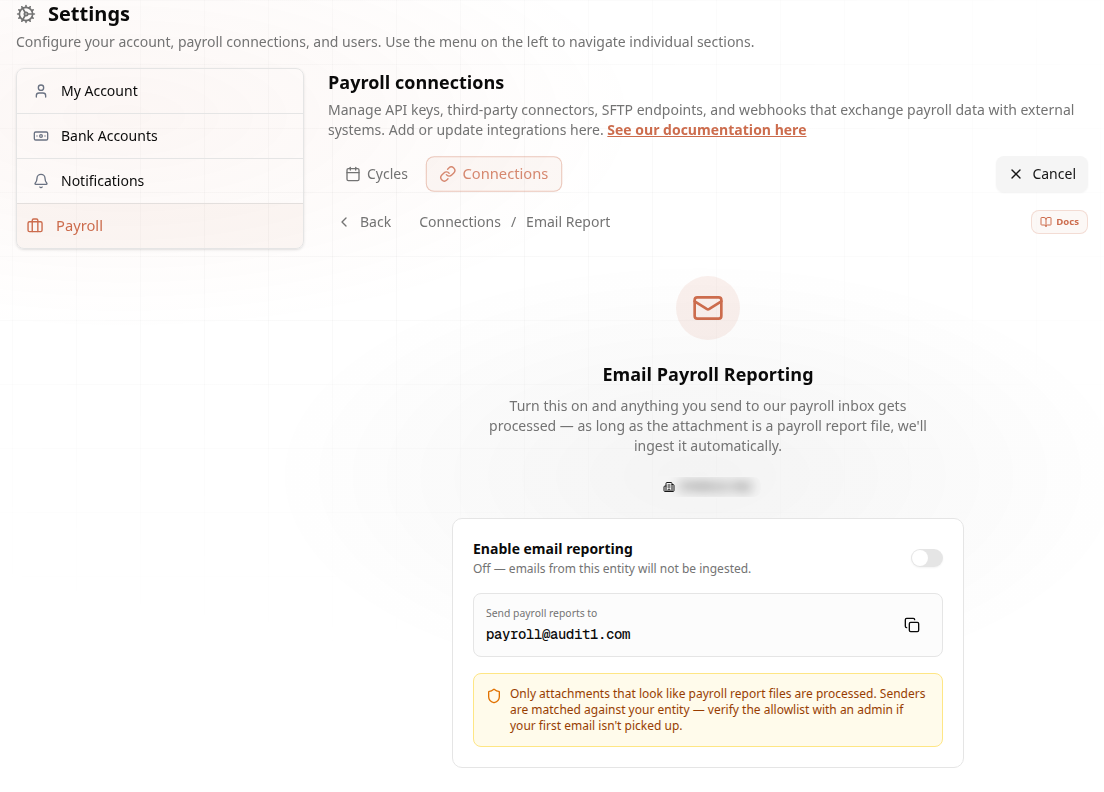
Full rules (sender matching, FEIN, multiple files): Email connector.
Connections Center — Payroll Provider (Global) #
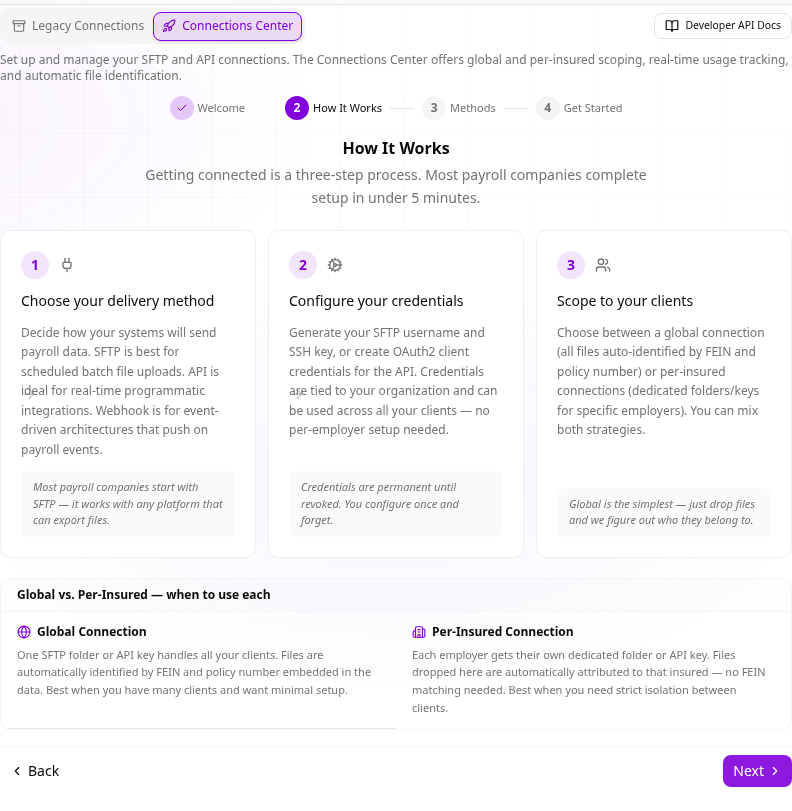
In the Payroll portal, open Settings → Connections Center. A short guided intro (Welcome → How It Works → Methods → Get Started) explains the model:
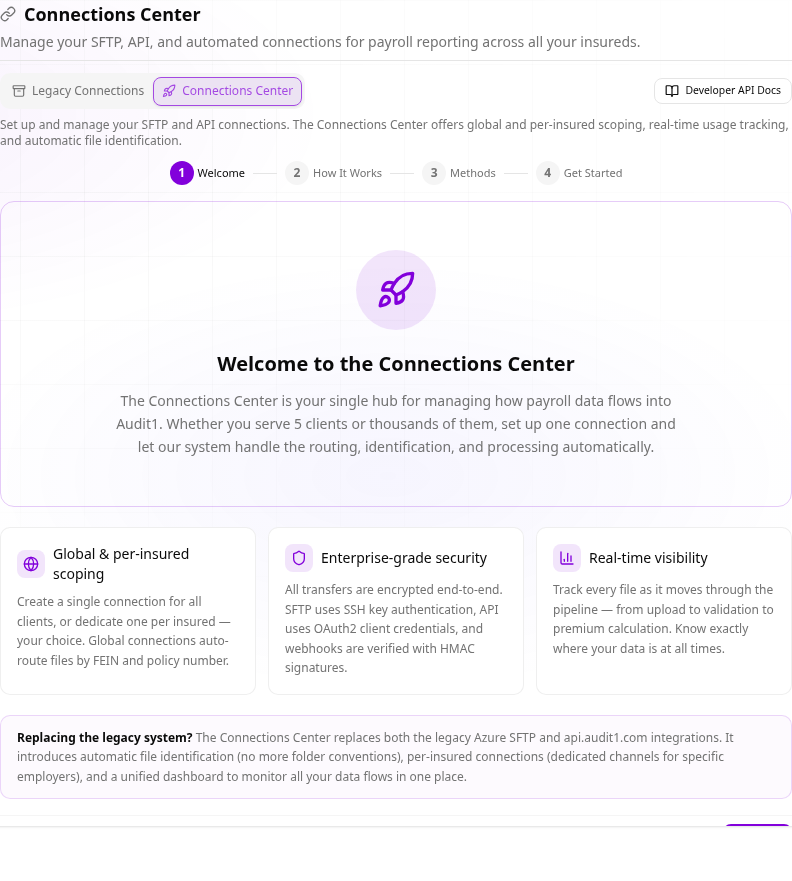
- Global & per-insured scoping — create a single connection for all clients, or dedicate one per insured. Global connections auto-route files by FEIN and policy number.
- Enterprise-grade security — SFTP uses per-account credentials over SSH transport encryption, API uses OAuth2 client credentials, webhooks are verified with HMAC signatures.
- Real-time visibility — track every file from upload to validation to premium calculation.
The How It Works step spells out the 3-step process (choose delivery method → configure credentials → scope to your clients) and when to use each scope:
When you set up a method, the wizard asks for the scope explicitly — global or per-insured:
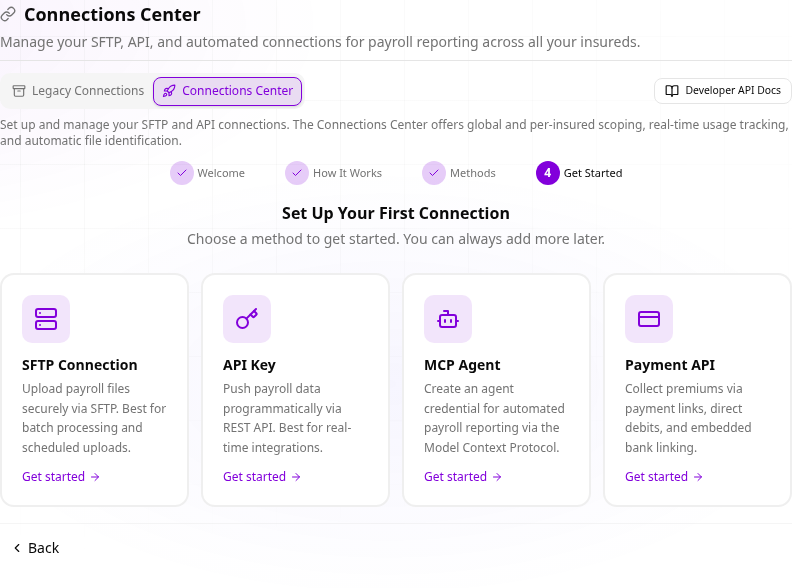
Provider setup methods:
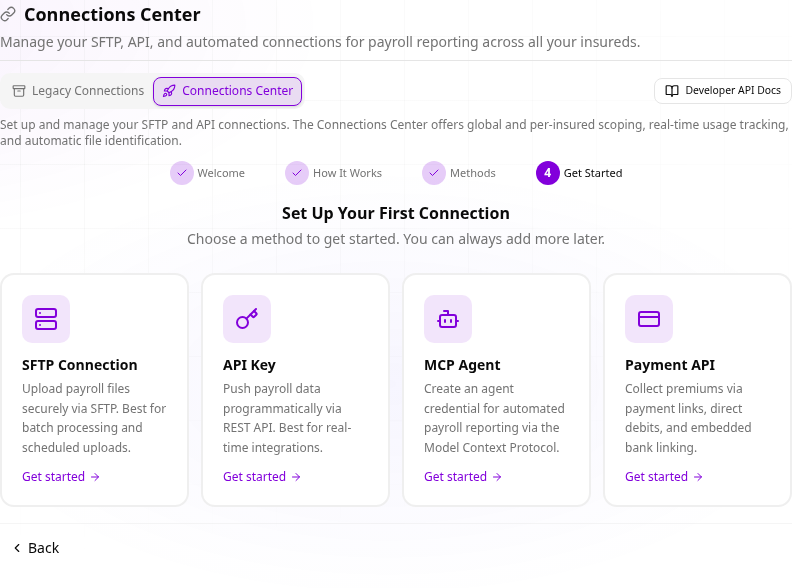
| Method | What it does |
|---|---|
| SFTP Connection | Upload payroll files for all your clients via one SFTP account. Best for batch processing and scheduled uploads. |
| API Key | Push payroll data programmatically via REST API. Best for real-time integrations. |
| MCP Agent | Agent credential for automated payroll reporting via the Model Context Protocol. |
| Payment API | Collect premiums via payment links, direct debits, and embedded bank linking. |
Legacy connections are being retired.
The legacy Azure SFTP and api.audit1.com integrations are replaced by the Connections Center. It adds automatic file identification (no more folder conventions), per-insured connections, and a unified dashboard.
Connection Statuses #
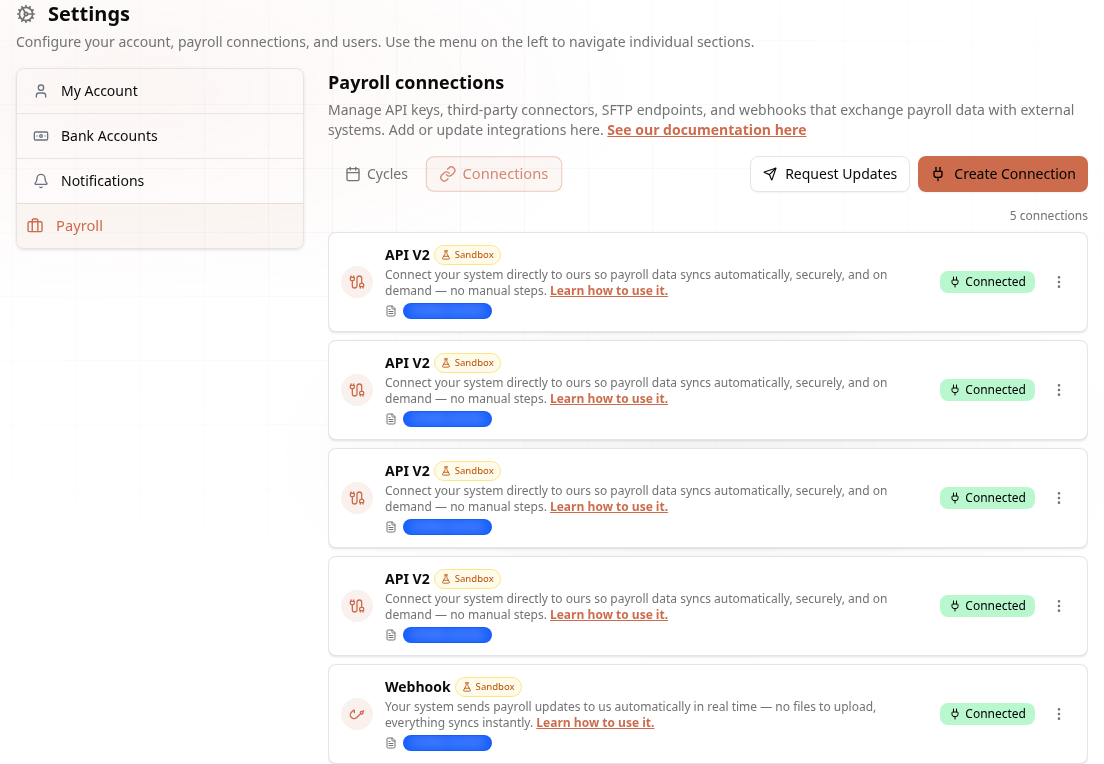
| Status | Meaning |
|---|---|
| Connected | Active and syncing. |
| 🟡 Pending | Created, waiting on requested credentials. You'll be notified when ready. |
| 🟠 Needs Attention | Credentials failed — re-verify your API access from the connection card's Manage menu. |
| Sandbox badge | Test connection — data flows through the dry-run pipeline, nothing is billed. |
Your active connections appear as cards on the Connections page, each showing its policy, status, and a Manage menu (edit / delete):
Need help? Email support@audit1.com and we'll help you pick and configure the right connection.