


Automatically sync employee and payroll data from Paylocity into Audit1.
What syncs: Employee records, Pay statements (summary + detail), Earnings & deductions, Company codes (earnings classifications)
Prerequisites #
- Active Paylocity account with API access enabled
- Admin or Payroll Administrator role in Paylocity
- Active Audit1 account
- Paylocity API credentials (Company ID, Client ID, Client Secret)
Setup #
1. Start in the Connections Center #
Go to Settings > Payroll > Connections > Create Connection > Connectors > Paylocity (see Connections Center for the full map).
The wizard asks whether you already have API credentials from Paylocity:
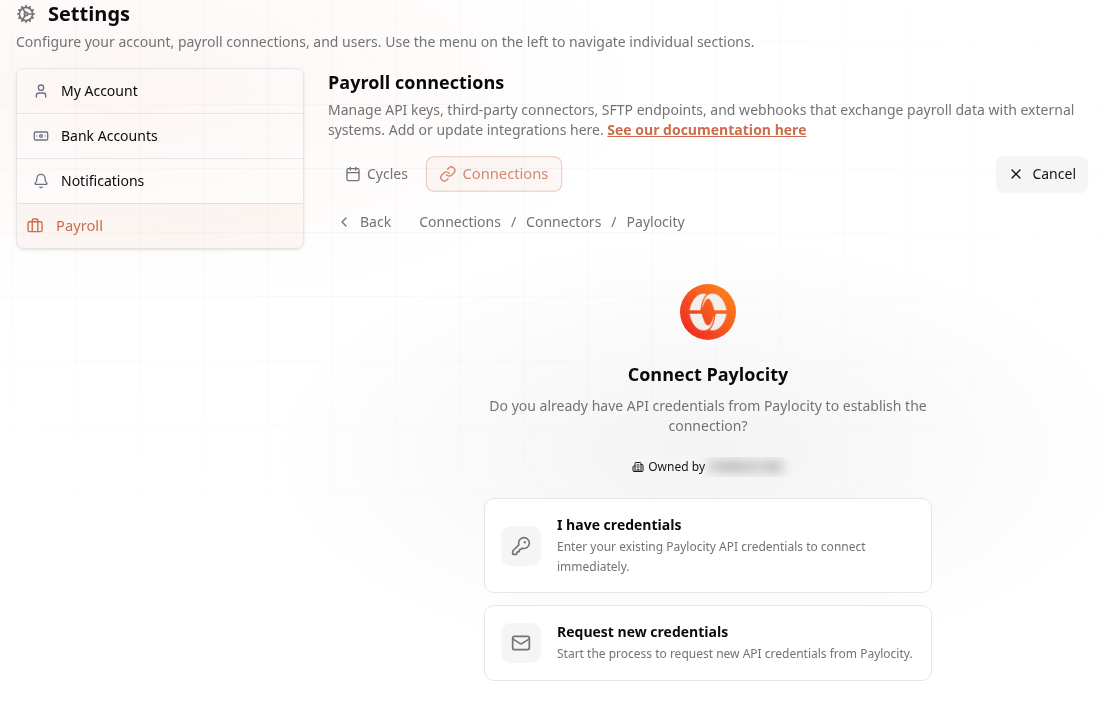
- I have credentials — enter them and connect immediately (step 2)
- Request new credentials — Audit1 starts the request process for you; the connection is created in pending status and you're notified when the credentials are ready:
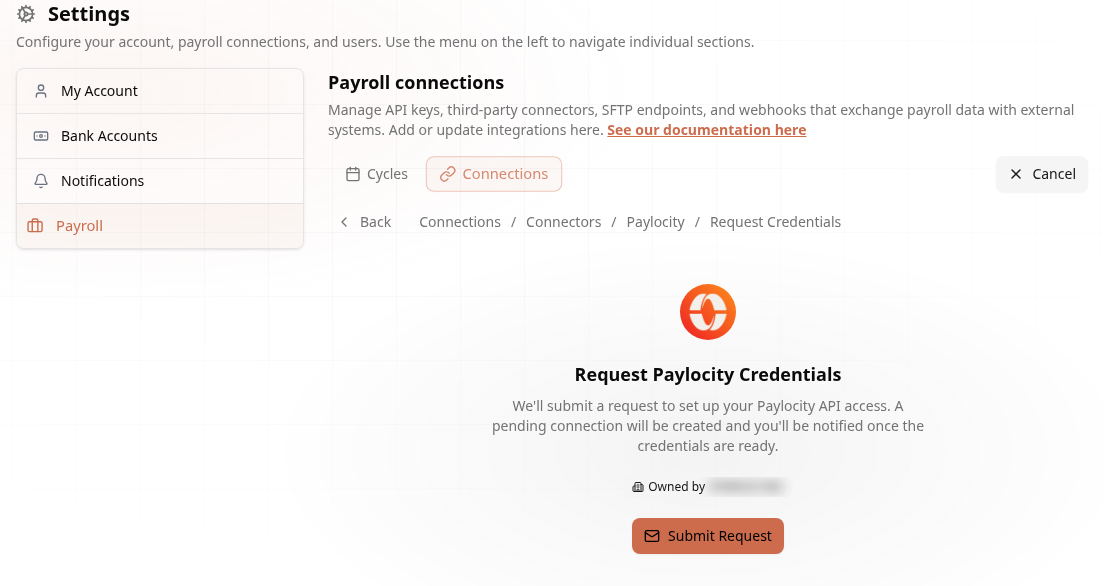
2. Enter API Credentials #
- In Paylocity: go to Company > API Management and generate API credentials
- In Audit1: enter your Company ID, Client ID, and Client Secret
- Click Connect Paylocity
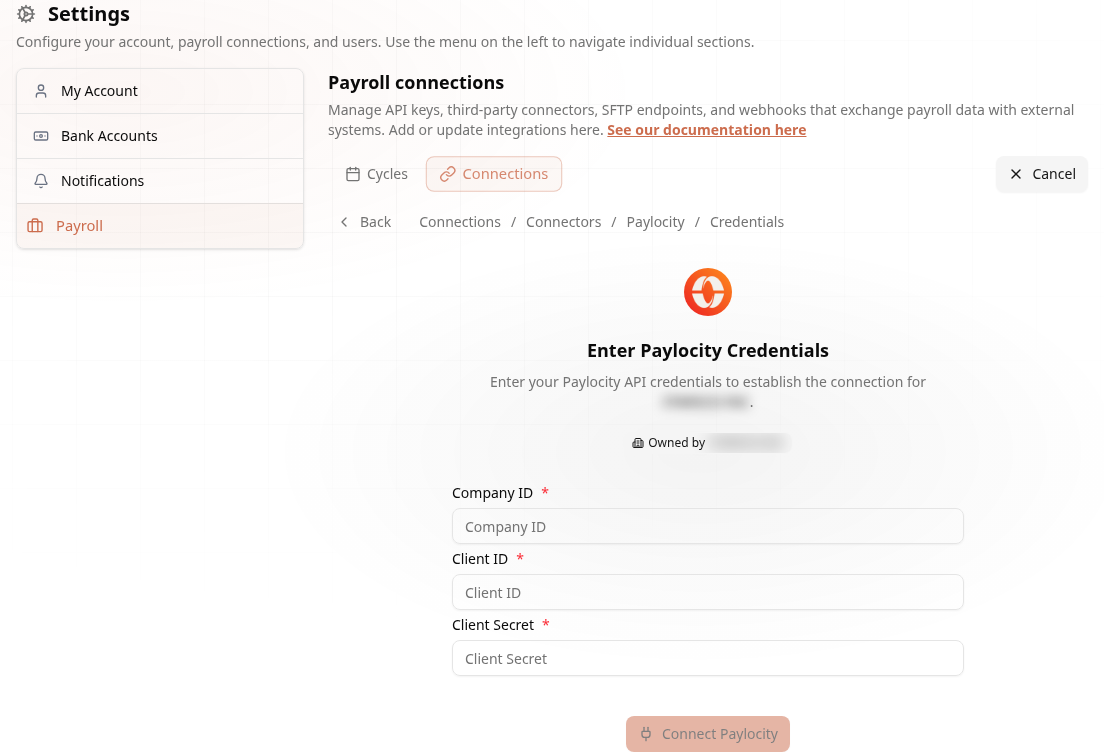
Audit1 uses the OAuth 2.0 client_credentials grant to authenticate with Paylocity's API. Tokens are acquired automatically and refreshed before expiration -- no manual token management required.
3. Configure Sync Schedule #
| Setting | Options |
|---|---|
| Frequency | Daily, weekly, monthly, or manual |
| Date range | Current policy period or custom |
Syncs are triggered on the configured schedule via Cloud Scheduler or manually through the API.
4. Test and Go Live #
- Click Run Test Sync -- verify employee records and pay data match Paylocity
- Confirm sync schedule is set
- Configure email notifications for sync status
How It Works #
The connector fetches data through the Paylocity REST API v2:
- Employees -- Fetched with pagination, all active employees in the company
- Pay Statement Summaries -- Annual pay statement summaries per employee
- Pay Statement Details -- Detailed pay data per employee per check date
- Earnings -- Earnings breakdown per employee
- Company Codes -- Earnings classification codes used for Workers' Comp auditing
Each sync run pulls employees and their pay statements, transforms the data, and uploads it to the Audit1 ingestion pipeline for validation and processing.
Multi-Tenant (Payroll Companies) #
The Paylocity connector supports multi-tenant operation for payroll companies managing multiple employer clients. Each employer gets its own set of credentials stored in the database, and syncs can target specific employers or run across all configured employers.
Contact support@audit1.com to enable multi-tenant mode. Each client gets its own connection, credentials, and sync schedule.
Troubleshooting #
| Problem | Solution |
|---|---|
| Can't connect | Verify Company ID, Client ID, and Secret. Ensure admin role. Check API is enabled in Paylocity. |
| Sync fails | Check Paylocity status page. Credentials may have expired -- re-enter them. |
| Data mismatch | Check sync date range. Verify the year being queried matches your policy period. |
| Missing employees | Verify employees are active in Paylocity and included in the company being synced. |
Need help? Email support@audit1.com with subject "Paylocity Connector".