

Send a payroll report as an email attachment to payroll@audit1.com and Audit1 will identify your employer, parse the attachment, and run it through the standard ingestion pipeline. No code, no SFTP setup — just hit Send.
Supported attachments: CSV, Excel (.xlsx, .xls), PDF.
Prerequisites #
- An employer record on Audit1 with a recognizable business name or FEIN
- An email address belonging to that employer (the connector uses the sender to match)
- A payroll report attached (one or more — each attachment becomes a file)
That's it. No code is required — but enable email reporting in the Connections Center first so your sender is matched instantly instead of being held for manual review.
Enable It in the Connections Center #
In the employer portal go to Settings > Payroll > Connections > Create Connection > Email Report (see Connections Center):
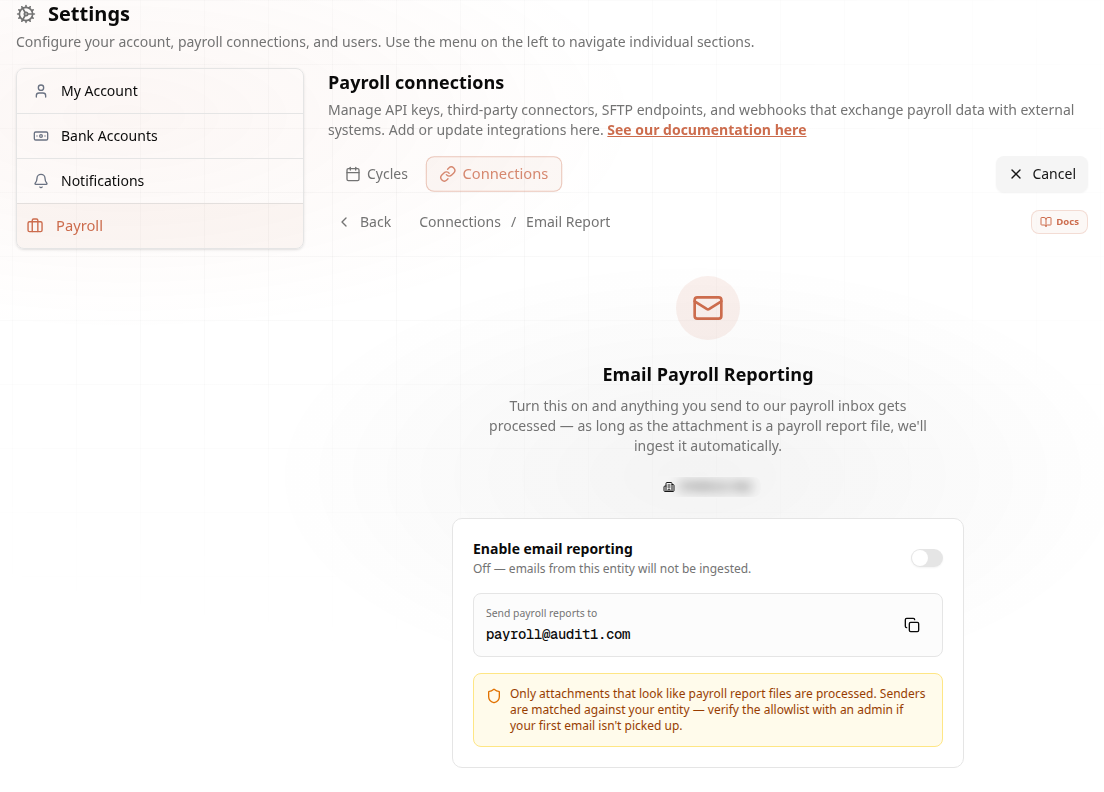
Turn on Enable email reporting and note the destination inbox shown (payroll@audit1.com). Only attachments that look like payroll report files are processed, and senders are matched against your entity — if your first email isn't picked up, verify the sender allowlist with an admin.
How It Works #
any email client"] inbox["payroll@audit1.com
Google Workspace"] pubsub["Pub/Sub push"] connector["Connector-email
triage · sender identification"] gcs[("connectors-api-files
GCS bucket")] creator["Files-creator"] db[("MongoDB")] auditor["Auditor
P1 · P2 · P3"] sender --> inbox --> pubsub --> connector --> gcs --> creator --> db --> auditor classDef primary fill:#4f39f6,color:#ffffff,stroke:#4f39f6,stroke-width:2px; class connector primary
- Inbox watcher. A Google service account with domain-wide delegation watches the
payroll@audit1.commailbox via the Gmail API. New messages produce a Pub/Sub push notification to the connector. - Triage. The connector reads the message, extracts attachments, and infers the file type. Messages without recognized attachments are auto-archived.
- Sender identification. The connector resolves the sender email to an Audit1 employer: registered sender first, then verified domain, then FEIN found in the subject/body, then the employer record's contact email.
- Optional PDF / policy pre-read. PDF attachments are parsed by
Payroll-pdf-reader; policy declarations get a quickPolicy-readerpass to confirm coverage. - Upload. The cleaned report lands in the
connectors-api-filesGCS bucket. Files-creator picks it up; Auditor runs Phase 1 / 2 / 3 as usual.
If sender identification fails the message is held for manual triage in the portal under Operations > Email Inbox.
Best Practices #
| Do | Don't |
|---|---|
| Send from the email registered on the employer record | Send from random personal aliases — identification will hold the message for review |
| Use one attachment per report (CSV/Excel preferred) | ZIP multiple files together — the connector unpacks zips but it's slower |
Put the pay period in the subject line (e.g., Acme Payroll 2026-03-01 to 2026-03-15) |
Embed payroll as inline HTML — only attachments are parsed |
| Match the file format you already use for SFTP | Send password-protected attachments — the connector cannot read them |
File Naming & FEIN — What Actually Identifies You #
The filename does NOT identify your company. Audit1 resolves who an email belongs to in this order:
- Registered sender email — exact match against the senders enabled in the Connections Center (strongest)
- Verified sender domain — any address at your verified company domain
- FEIN in the subject or body — recognized formats:
XX-XXXXXXX,FEIN: XX-XXXXXXX,EIN: XXXXXXXXX - Contact email lookup — the sender matches the contact email on your employer record
If none of these match, the email is held for manual review — not lost, but slower.
Recommendations:
- Enable email reporting and register your sender address in the Connections Center (section above) — that alone guarantees identification.
- Put your FEIN in the subject line as a tiebreaker — essential if one person sends for more than one company.
- Name files clearly anyway:
CompanyName_FEIN_PayPeriod.csv(e.g.,Acme_12-3456789_2026-05-31.csv). The name doesn't drive identification, but it makes review and support much faster.
How Many Files per Email? #
- Multiple attachments are allowed — each attachment becomes its own payroll file in Audit1.
- One company per email. All attachments in a single email are assigned to the SAME employer (the one identified from the sender/FEIN).
- Payroll for several companies? Send one email per company, each with that company's FEIN in the subject. Never mix companies' files in one email — they would all land on a single account.
Allowed file types: .csv, .xlsx, .xls, .pdf — anything else is skipped silently. Attachments over 25 MB are rejected by the mail system. Password-protected files cannot be read.
File Format #
The same shape used by the SFTP integration — see that page for the minimum-column spec. Anything Audit1 can read via SFTP, it can read via email.
Troubleshooting #
| Problem | Solution |
|---|---|
| Email sent but no file appears | Allow 10-15 minutes. Verify email reporting is enabled and the sender is registered in Settings > Payroll > Connections > Email Report (Connections Center). |
| ✗ "Unable to identify sender" reply | Reply to the bounceback with your employer FEIN, or register the sender in your portal and resend. |
| ✗ Attachment was a password-protected PDF | Remove the password and resend. The connector cannot decrypt attachments. |
| ✗ Multiple employers under one sender | Put the destination employer's FEIN in the subject line — the connector uses it as a tiebreaker. |
Need help? Email support@audit1.com — note: do not send payroll reports to
support@. Reports must go topayroll@audit1.comto be ingested.