

SFTP Connection
Upload payroll files to Audit1 via SFTP. Set it up once, then files are processed automatically on upload.
What is SFTP?
Secure File Transfer Protocol — a secure digital dropbox. Upload your payroll files, Audit1 picks them up and processes them automatically.
Setup #
- Log into your portal: employer.audit1.com or provider.audit1.com
- Employers: Settings > Payroll > Connections > Create Connection > SFTP. Payroll providers: Settings > Connections Center > SFTP Connection — one global account covers all your clients (Connections Center).
- The wizard generates your credentials instantly
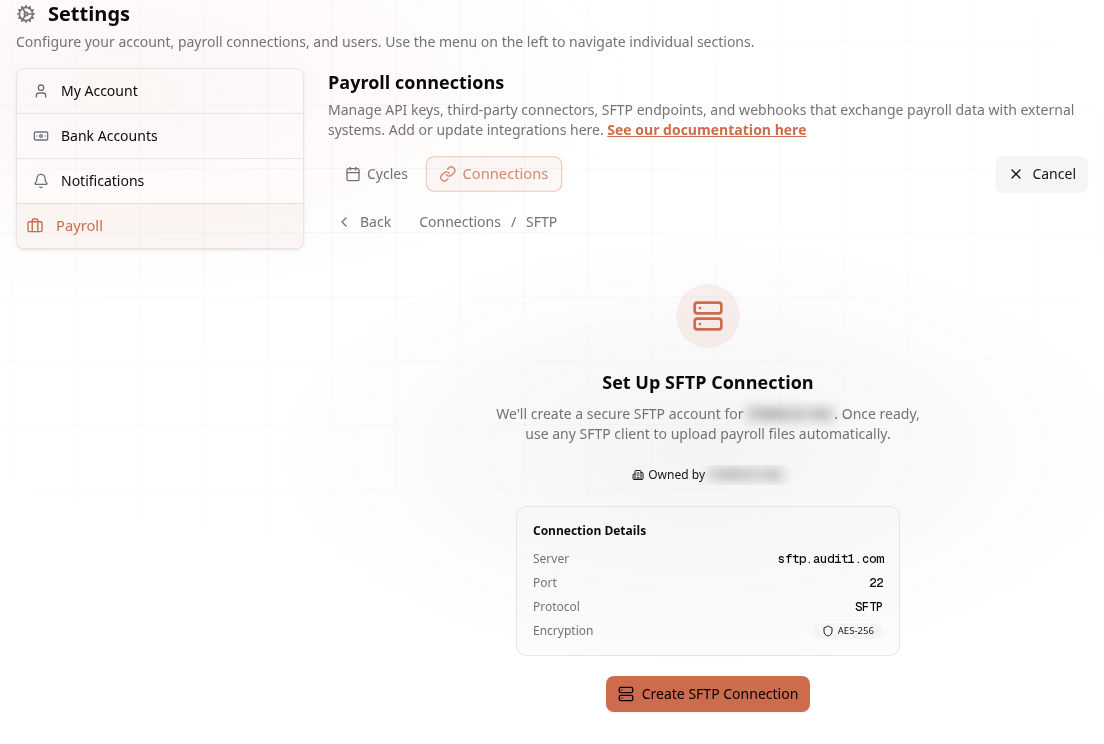
Connection Details #
| Setting | Value |
|---|---|
| Server | sftp.audit1.com |
| Port | 22 |
| Username | Generated for you |
| Password | Shown once — save it! |
| Remote path / directory | / |
| Destination | A file name inside / — never the folder itself |
Warning
Save your password immediately — it's only displayed once. Lost it? Generate a new SFTP connection.
Leave the remote path as /. Your account is locked to its own folder on our side, so / already is your folder. There is nothing to cd into and no sub-folder to create. If your software asks for a directory and will not accept a blank value, put a single /.
The destination must be a file, not the folder #
This is the one thing that breaks new connections, and it breaks them silently: your transfer has to name the file it is writing.
If your software is pointed at the folder instead of at a file inside it, we cannot accept the write — a folder is not something you can write bytes into — and the server answers:
operation unsupported
Some tools show that alongside a URL with nothing after the last slash, which is the same symptom seen from the other side:
sftp://sftp.audit1.com// ← the file name is missing
Nothing is transferred at all. There is no partial file and no half-upload for us to recover, so the failure leaves no trace in your Files list — it looks identical to never having sent anything. A scheduled job in this state can fail every night for weeks without anyone noticing.
| Right | /Audit1WC_WC1036281_2026-08-31.csv |
| Also right | Audit1WC_WC1036281_2026-08-31.csv with remote path / |
| Wrong | / · (blank) · a folder path with no file at the end |
Drag-and-drop clients such as FileZilla, WinSCP and Cyberduck always send the file name for you, so they are the fastest way to confirm the account itself is fine. If a manual drag-and-drop upload works and your scheduled job does not, the account, password, host and port are all correct — the job is missing its file name.
Scheduled transmissions from payroll software #
Payroll platforms (iSolved, UKG, Paylocity, Netchex and the rest) send on a timer from a screen usually called Scheduled Transmissions, File Transfer or Export Delivery. Fill it in like this:
| Field (names vary by platform) | Value |
|---|---|
| Protocol / Type | SFTP (SSH File Transfer — not FTP, not FTPS) |
| Host / Server | sftp.audit1.com |
| Port | 22 |
| Authentication | Password |
| User / Username | the username from your portal |
| Password | the password from your portal |
| Remote path / Remote directory / Target folder | / |
| Remote file name / Target file / Output file | required — e.g. Audit1WC_{Policy}_{CheckDate}.csv |
Warning
If the screen has a remote-path box but no file-name box, put the file name at the end of the path — /Audit1WC_{Policy}_{CheckDate}.csv. Leaving the path as / with nowhere to put a name is what produces operation unsupported.
We do not require any particular file name. It only has to exist, and be unique enough that one payroll does not overwrite another — a date or a check date in the name is enough. We identify the employer from the contents of the file (policy number and FEIN), not from its name.
Test Your Connection #
GUI Client (Recommended) #
Popular free SFTP clients: - FileZilla (Windows, Mac, Linux) - Cyberduck (Mac, Windows) - WinSCP (Windows)
FileZilla setup: File > Site Manager > New Site > Protocol: SFTP, Host: sftp.audit1.com, Port: 22, enter credentials, Connect.
Command Line #
sftp your_username@sftp.audit1.com
File Formats #
| Format | Extensions | Best For |
|---|---|---|
| CSV | .csv |
Most common — works with any payroll system |
| Excel | .xlsx, .xls |
Spreadsheet exports |
| JSON | .json |
Structured data from software systems |
.pdf |
Scanned documents (extracted via OCR) |
Minimum Required Columns #
EmployeeID,FirstName,LastName,GrossPay,PayDate,HoursWorked
EMP001,John,Doe,2500.00,2024-01-15,80
EMP002,Jane,Smith,3000.00,2024-01-15,80
Required: Employee identifier, gross pay, pay date. Recommended: Hours worked, class code, state (speeds up processing).
File Naming #
Every upload must have a file name — see the destination must be a file. Beyond that the exact name is up to you; we read the employer out of the file's contents, not its name.
A date in the name is worth having, so two payrolls never overwrite each other:
{CompanyName}_{PayrollDate}.csv

Examples:
  AcmeCorp_2024-01-15_Payroll.csv
  SmithInc_01-15-2024.xlsx
  Audit1WC_WC1036281_2026-08-31.csv
Uploading #
sftp your_username@sftp.audit1.com
put /path/to/payroll_file.csv        # `put` supplies the file name for you
quit
Writing to an explicit destination, which is what a scheduled job has to do:
# ✅ names the destination file
put /path/to/payroll_file.csv /Audit1WC_WC1036281_2026-08-31.csv

# ❌ destination is the folder — refused with `operation unsupported`
put /path/to/payroll_file.csv /
⏰ Automated Uploads #
Linux/Mac cron (every Friday at 2 AM):
0 2 * * 5 sftp -b /path/to/sftp-commands.txt username@sftp.audit1.com
Windows Task Scheduler + WinSCP:
"C:\Program Files\WinSCP\WinSCP.com" /command ^
  "open sftp://username:password@sftp.audit1.com:22/" ^
  "put C:\Payroll\exports\*.csv" "exit"
⏱️ Processing Timeline #
| Step | Time | Description |
|---|---|---|
| 1️⃣ Detection | 1-5 min | Audit1 detects your new file |
| 2️⃣ Validation | 1-2 min | Format check, employer/policy match |
| 3️⃣ Processing | 2-10 min | Data extraction and normalization |
| 4️⃣ Available | < 15 min | Data appears in your dashboard |
Track status in your portal under Files.
Troubleshooting #
| Problem | Solution |
|---|---|
✗ operation unsupported |
Your transfer is aimed at the folder instead of a file inside it. Set the remote path to / and give the transmission a file name — see above. Nothing was transferred, so there is nothing to clean up: fix the file name and the next run lands. |
| ✗ Scheduled job fails, manual upload works | Same cause. A drag-and-drop client always supplies the file name; your scheduled job is not. The account, password, host and port are all fine. |
| ✗ Login succeeds then the connection drops | Same cause. We accept the login, refuse the write to a folder and close the session. |
| ✗ Can't connect | Verify port 22 is open. Check firewall allows outbound TCP 22. |
| ✗ Nothing arrives and no error is shown | Send one file by hand with FileZilla or WinSCP. If that lands, the account is healthy and your automated job is misconfigured — almost always the missing file name. |
| ✗ File not processing | Check format (CSV/Excel/JSON/PDF). Wait 15 min. Check Files section for errors. |
| ✗ Upload times out | Check internet. Split large files (>50MB). Try off-peak hours. |
FAQ #
Q: How often should I upload? Match your payroll frequency — weekly, bi-weekly, or monthly.
Q: Can I upload historical data? Yes. Upload as usual — we process using the dates in your data.
Q: File size limit? Up to 500MB. For larger files, split into batches.
Need help? Email support@audit1.com