

QuickBooks Online
Sync pay runs, pay stubs, and company info from QuickBooks Online into Audit1 using Intuit's official OAuth 2.0 Authorization Code flow.
What syncs: Pay runs, pay stubs (per-employee detail), company info (legal name, EIN), employees
Prerequisites #
- Active QuickBooks Online account (Intuit)
- A QBO Admin who can grant the connection from inside QuickBooks
- Active Audit1 account with an employer record matching the QBO company
Setup #
1. Start in the Connections Center #
Go to Settings > Payroll > Connections > Create Connection > Connectors > QuickBooks (see Connections Center for the full map).
2. Click "Connect with QuickBooks" #
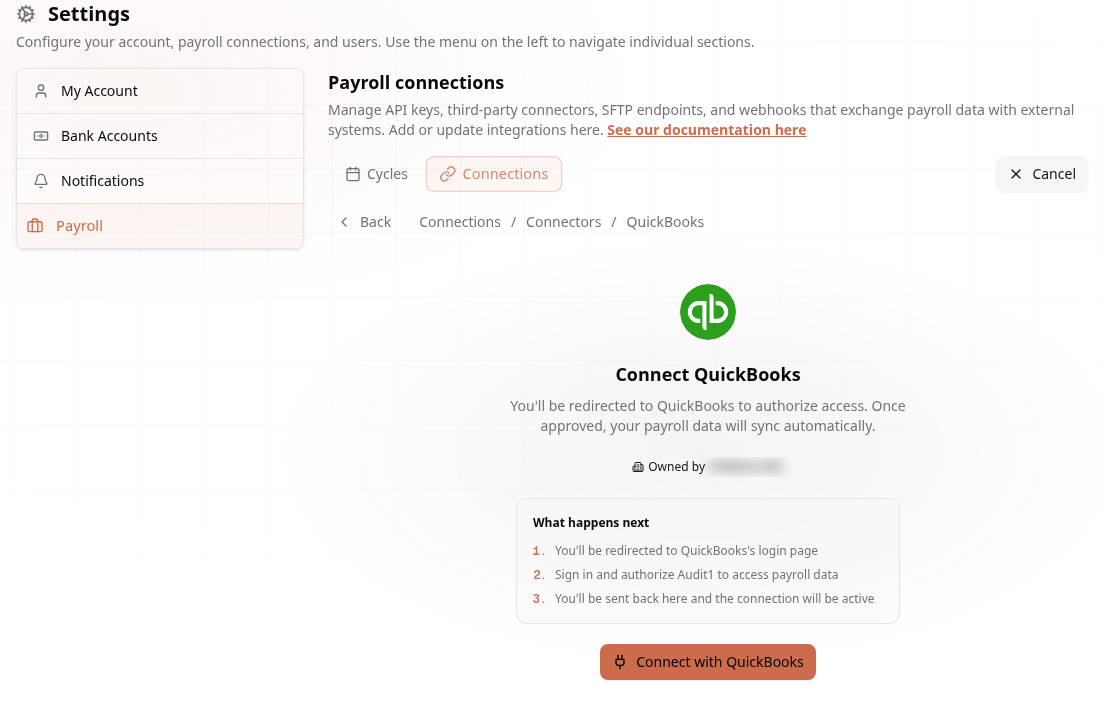
You will be redirected to Intuit. Sign in with your QuickBooks credentials, choose the company to connect, and grant the requested scopes. Intuit redirects you back to Audit1 automatically.
The OAuth flow is the standard Intuit Authorization Code grant — no client-side keys, no secret to copy. The connector stores a refresh token on Audit1's side and rotates the short-lived access token automatically.
3. Set Schedule and Go Live #
| Setting | Options |
|---|---|
| Frequency | Daily (recommended), weekly, or manual |
Run a test sync first. Once data looks correct in your Audit1 dashboard, enable the schedule.
How It Works #
Intuit OAuth 2.0"] connector["Connector
QuickBooks Online"] gcs[("connectors-api-files
GCS bucket")] creator["Files-creator"] db[("MongoDB")] auditor["Auditor
P1 · P2 · P3"] qbo --> connector --> gcs --> creator --> db --> auditor classDef primary fill:#4f39f6,color:#ffffff,stroke:#4f39f6,stroke-width:2px; class connector primary
- OAuth — Each connection captures
realm_id(Intuit's company identifier) and the refresh token, scoped to that employer. - Pull — The connector calls Intuit's REST endpoints (
/payruns,/paystubs,/companyinfo) for the date window. - Normalize — Per-employee pay stub data is converted to the Audit1 payroll-row format and uploaded to the
connectors-api-filesGCS bucket. - Ingest — Files-creator picks up the upload, identifies the employer + policy, and the Auditor runs Phase 1 / 2 / 3.
Each employer can be connected to one QuickBooks realm at a time. Disconnecting from inside Audit1 revokes Audit1's tokens with Intuit immediately.
Workers' Comp Class Codes #
QuickBooks only includes class codes in your payroll data if they are set up inside QuickBooks Online Payroll first:
- Add your class list — Gear icon → Payroll settings → your state → Workers' Compensation Tax Setup → Add Class and Subclass (enter the class and its rate).
- Assign one class per employee — Team → Employees → select the employee → Job & pay → Employment details → Edit → set the Workers' comp class. QuickBooks Online Payroll supports one class per employee (multiple classes per employee are not supported natively).
- With classes assigned, the Workers' Compensation report (Reports → Payroll section) breaks wages down by class code — this is the best QuickBooks report to upload to Audit1 manually.
If your file arrives without class codes (for example the "Payroll summary by employee" report, which never includes them — Audit1 detects this report's sideways layout and converts it automatically):
- Policies with a single class code: Audit1 classifies every row automatically.
- Policies with multiple class codes: assign each employee's class once in the Audit1 payroll review screen. Audit1 remembers it on the employee record and classifies all future uploads and synced pay runs automatically.
Endpoints (Internal — Portal & Diagnostics Only) #
These are managed by the Audit1 portal; developer API keys cannot call them directly. Included here so engineers debugging an integration know what each route does.
| Method | Endpoint | Description |
|---|---|---|
| GET | /auth/connect?employer_id=... |
Redirect to Intuit consent screen |
| GET | /auth/callback |
Intuit redirects here after user grants access |
| POST | /auth/disconnect |
Revoke tokens for a connection |
| GET | /auth/status/:realmId |
Connection health for one realm |
| GET | /auth/connections |
List all connected realms |
| GET | /payroll/company?realm_id=... |
Pull company info |
| GET | /payroll/payruns?realm_id=...&start_date=...&end_date=... |
Pull pay runs in a window |
| GET | /payroll/paystubs?realm_id=... |
Pull pay stubs |
| POST | /orchestrator/sync |
Trigger a full sync for one connection |
Troubleshooting #
| Problem | Solution |
|---|---|
| ✗ "Connection Denied" page after Intuit redirect | The QBO user clicked Cancel. Restart from your portal. |
| ✗ Sync returns 401 / 403 mid-stream | Refresh token expired or was revoked inside QBO. Click Reconnect in your portal. |
| ✗ No pay-run data appears | Verify QuickBooks Payroll is active on the connected realm. The connector pulls from QBO Payroll, not QBO accounting line items. |
| Uploaded a QuickBooks report and rows show "no class code" | The Payroll summary by employee report carries no class codes. Either upload the Workers' Compensation report instead (requires WC classes set up in QBO Payroll — see above), or assign each employee's class once in the Audit1 review screen. |
| Sync stuck "pending" | Files-creator may be backed up. Check the file list in your portal; allow up to 15 minutes during normal load. |
Need help? Email support@audit1.com